



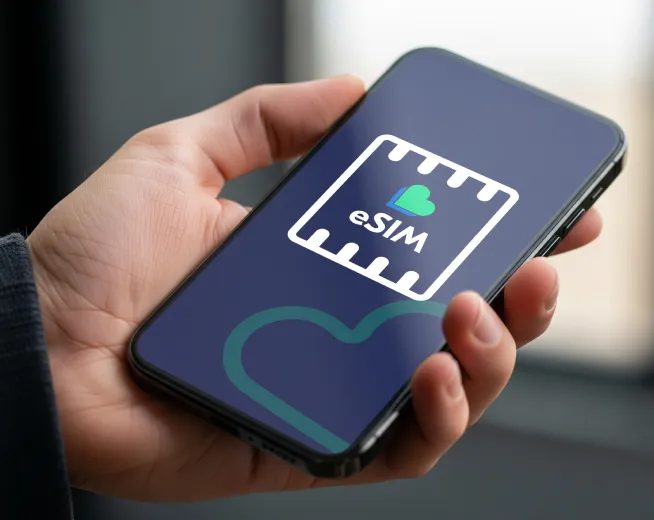
Making the move to an eSIM is one of the easiest changes that can be made. You don’t have to wait for a SIM card to arrive in the mail anymore because with an eSIM, it will download to your device within a couple of minutes. This guide covers everything you should know about eSIM’s based on your specific iPhone model.
What is an eSIM and why use one?
If your iPhone has eSIM functionality, then setting up your phone will be much easier because your SIM has already been embedded into your device, therefore you do not need to remove the physical card and you can activate your SIM quickly using eSIM activation. Using eSIM technology, you can also take advantage of getting Dual SIM functionality without having to worry about losing your tiny physical SIM in the couch.
If you're a traveler, eSIMs allow you the ability to switch plans while you are away from home without needing to swap your physical SIM card. At the moment, Lyca Mobile offers a great pay-as-you-go eSIM deal on current plans.
Compatibility Check
Find out if your Apple iPhone supports eSIM. All iPhone XS, XR, and newer devices (i.e., all models of iPhone 11, 12, 13, 14, 15, and 16 series), including both generations of iPhone SE, will have eSIM technology.
To confirm your phone has an eSIM capability, go into settings, then general, then about. If you see an 'EID' number in this section, your phone supports an eSIM. Also, make sure that your phone is unlocked, as a lock on the device will prevent certain networks from using the eSIM.
Things you need before you begin:
An 'eSIM-compatible unlocked' iPhone
Your WiFi Internet connection (required to install)
Your Lyca Mobile eSIM (QR CODE) sent after purchasing
IOS version 12.1 & above
eSIM Installation Guide for iPhone
Adding an eSIM to your phone can be accomplished in three different ways.
Method 1: Scanning a QR Code
Scanning a QR code is the quickest of the three.
First, you will need to connect your phone to Wi-Fi.
Open the camera app on your phone and point it at the Lyca Mobile QR code.
You will see the notification "cellular plan available" on your phone screen; tap on this notification, and the eSIM will be added to your phone.
Select the “Add Cellular Plan” button. Then choose whether to set up your plan automatically or, if asked, type in the confirmation code provided in the email.
You can now label your new data line with whatever name you would like (e.g., Lyca UK). You should see the Lyca Mobile network in your status bar within a matter of seconds.
Method 2: Adding via Settings
eSIM may be added through the following method:
Open the Settings app, go to Mobile Data, and select Add eSIM.
Choose "Use QR Code" and scan the QR code provided by Lyca Mobile.
Follow the prompts to name your eSIM and designate it as your primary line of data.
Note: On iOS 18, the path is Settings → Mobile Data → Add eSIM → Use QR Code.
Method 3: Enter Details Manually
If you are unable to scan the QR code, navigate to Settings > Mobile Data > Add eSIM > Enter Manually.
Enter the SM-DP+ address and activation code from your Lyca Mobile welcome email, then tap Next to continue.
Setting Lyca Mobile as Your Default Line
After adding your Lyca Mobile eSIM, navigate to Settings → Mobile Data and select Mobile Data to make this your default eSIM for data. If you want to use Lyca Mobile for voice calls as well, choose Default Voice Line and modify accordingly.
Using Dual SIM
Using an eSIM, you can operate two numbers on one iPhone; this can keep your home phone service, maintain a UK calling plan, or separate your personal life from work. You can access both of your SIM cards through Settings > Mobile Data and regulate the accounts.
Troubleshooting
Having issues with your QR code not being able to scan? Make sure that you are holding the QR code steady while making sure that you are in an area where there is proper light. If you continue to have issues, please try to use method 3 (enter manually) or reach out to Lyca Mobile support for assistance.
If you don't have any service on your iPhone after activating your card, make sure to turn on Airplane mode and then turn it off. You can also restart your Apple phone. Please keep in mind that it may take up to 24 hours for your card to be completely activated.
The eSIM setting may not appear in your Settings if you have an iPhone that's locked to your carrier. Try to get your iPhone carrier unlocked through your current provider and then try to see if eSIM appears in Settings.
FAQ
Can I add multiple eSIMs?
Yes, the iPhone 13 or newer models can store multiple eSIMs at once, but you may only use one eSIM in addition to your existing SIM.
Does adding an eSIM replace my physical SIM?
No. Both will work on an iPhone in Dual SIM mode.
Can I delete an eSIM?
Go to Settings > Cellular > Select your eSIM plan > Select Remove Cellular Plan. The eSIM QR code cannot be reused so please contact Lyca Mobile so they can create you a new one if needed.
Discover How To Get Lyca Mobile eSIM In The U.K
Pay-As-You-Go SIM Offers
Monthly Only SIM Packages
Instructions For Activating eSIM In London
Ready to go DIGITAL? Just add an eSIM to your iPhone from Lyca Mobile, allowing you immediate online access without having to rely on paper contracts or physical SIM cards!